

Cybersecurity
How to reset apple ID password
Unlock your Apple ID with ease—discover the essential steps to reset your forgotten password, but there’s one crucial detail you can’t miss.


For decades, a persistent myth suggested that Apple computers were immune to viruses. While macOS is built on a robust Unix foundation and includes world-class security features, the reality of 2025 is that the threat landscape has evolved. Mac-specific malware—particularly Trojans, adware, and sophisticated spyware—is on the rise. Because Macs are now staples in high-value industries like creative arts, software development, and executive management, they have become lucrative targets for cybercriminals.+2
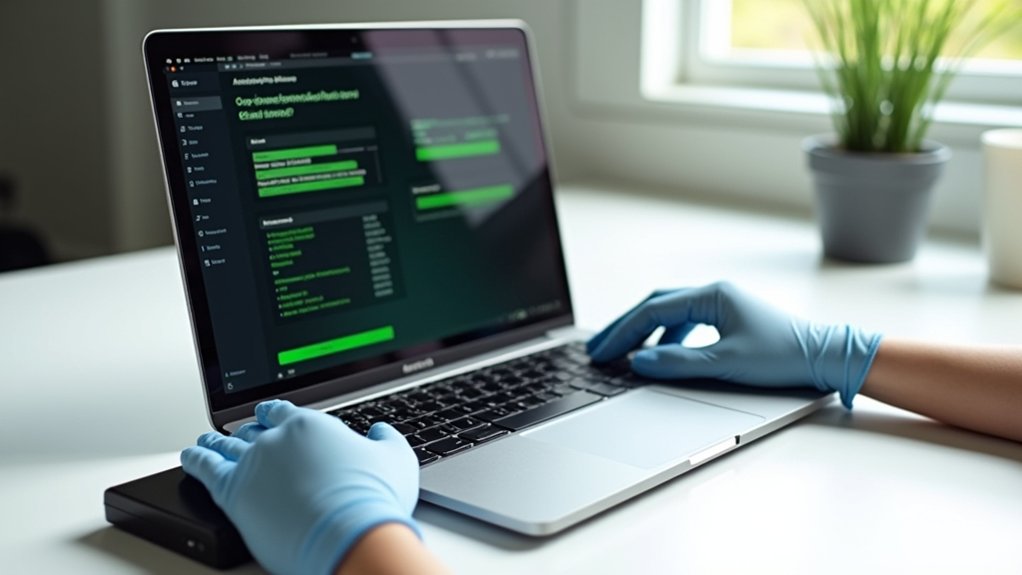
A Trojan horse is perhaps the most dangerous of these threats. Named after the ancient Greek myth, a digital Trojan appears to be something desirable—a free video editor, a cracked game, or a critical system update—but carries a hidden, malicious payload. If you suspect your Mac has been compromised, you must move beyond a simple restart. Safely removing a virus requires a systematic approach that isolates the infection, utilizes built-in defense layers, and employs professional-grade tools to ensure no “dormant” code remains.+1
The entry point for a Trojan is almost always human interaction. In 2025, hackers rarely “break” into a Mac; instead, they “trick” the user into letting them in. This is primarily achieved through social engineering. You might encounter a “malvertisement” on a streaming site claiming your Adobe Flash player is out of date (despite the technology being long dead) or an email attachment that looks like an invoice but is actually a .dmg file containing a malicious script.
Once you double-click that file and enter your administrator password, you have effectively bypassed Gatekeeper, Apple’s primary line of defense. The Trojan then “drops” its payload into sensitive system folders like ~/Library/LaunchAgents or /Library/StartupItems. This ensures that every time you turn on your Mac, the virus activates itself. From this vantage point, a Trojan can perform a variety of malicious tasks: logging your keystrokes to steal bank passwords, taking screenshots of your private documents, or even turning your Mac into a “zombie” node in a botnet to attack other websites.
Because Trojans are designed to be stealthy, they often lack the obvious “your computer is locked” messages associated with ransomware. Instead, you must look for subtle deviations from your Mac’s normal behavior. The most common sign is a sudden, unexplained drop in performance. If your M2 or M3-powered MacBook Pro is lagging while doing basic tasks like browsing the web, it may be because a virus is hogging your CPU cycles to mine cryptocurrency in the background.
Check your “Activity Monitor” (found in Applications > Utilities). If you see a process with a nonsensical name like “kernel_task_helper” or “sys_update” consuming 90% of your CPU, and you didn’t initiate an update, you are likely looking at the virus in action. Other warning signs include your fan spinning at maximum speed while the Mac is idle, your browser home page changing to an unfamiliar search engine, or receiving “security alerts” from websites that look like official Apple notifications but are actually designed to scam you. In 2025, “ghost” behavior—such as your webcam light flickering on for a split second or your cursor moving on its own—is a critical emergency that requires immediate isolation.
If you identify these signs, your first priority is to “quarantine” your Mac from the rest of the world. Modern malware is highly communicative; it constantly “calls home” to a Command and Control (C2) server to send stolen data or receive new instructions. By staying connected to the internet, you are essentially leaving the door open for the hacker to continue their work.
Immediately turn off your Wi-Fi and unplug any Ethernet cables. This action stops the data exfiltration process instantly. It also prevents the Trojan from “moving laterally” through your home network to infect your iPhone, iPad, or other computers. Once isolated, you should also disconnect any external backup drives, such as Time Machine disks. You do this to prevent the virus from infecting your backups; if you have a “clean” backup from two days ago, you want to keep it that way in case you need to perform a full system wipe later.
Before turning to third-party software, it is important to understand the tools Apple has already given you. Every modern macOS version includes “XProtect,” a background signature-based malware detection system. XProtect automatically scans every app you download and compares it against a known database of threats. Even if you don’t see an “Antivirus” window, XProtect is working. However, a Trojan can sometimes bypass this if it is a “Zero-Day” threat—one so new that its signature isn’t in Apple’s database yet.+1
“Gatekeeper” is another essential tool. It ensures that only apps from the App Store or identified developers can run. If you find yourself frequently overriding Gatekeeper in your “Privacy & Security” settings to open “unidentified” apps, you are significantly increasing your risk profile. To check for hidden threats manually, you should also inspect your “Login Items” (System Settings > General > Login Items). If you see an app in that list that you don’t recognize, click the “i” button and disable its ability to run in the background.
While built-in tools are excellent for prevention, they can sometimes struggle with deep-seated infections that have already taken root. In 2025, specialized antivirus software for Mac—such as Malwarebytes, Bitdefender, or Intego—has become a necessity for safe removal. These tools use “heuristic analysis,” which means they don’t just look for known “names” of viruses; they look for suspicious behavior. For example, if a small app is trying to modify the core system kernel, the antivirus will flag it even if it hasn’t seen that specific app before.
To remove the virus safely, download the software on a different, clean computer and transfer the installer via a USB drive, or briefly reconnect to the internet only after you have prepared the antivirus site for a quick download. Run a “Deep Scan” or “Full System Scan.” When the software identifies the Trojan, do not just delete the file. Most reputable software will “Quarantine” the threat first, which wraps the malicious code in a digital cage so it cannot execute, before safely shredding the files. After the scan is complete, restart your Mac in “Safe Mode” (hold the Power button on startup for Apple Silicon) to ensure that no secondary “helper” scripts are still running.
Removing the virus is only half the battle; the next step is ensuring it never returns. A successful Trojan infection is often a wake-up call regarding your digital habits. Start by changing every one of your major passwords—email, banking, and iCloud—but only after you are certain the Mac is clean. Use a password manager to ensure each site has a unique, complex string.
Enable Two-Factor Authentication (2FA) on everything. Even if a Trojan successfully logs your password in the future, the hacker won’t be able to access your accounts without the physical code on your phone. Additionally, ensure your macOS is updated to the latest version (e.g., macOS 15 or 16). Apple’s security updates are not just about new features; they often contain “silent” patches for vulnerabilities that Trojans use to gain “root” access to your hardware. Finally, consider your “User Account” type. Most users operate as an “Administrator” daily, but creating a “Standard” user account for everyday tasks adds an extra layer of safety; a Trojan cannot install itself on a standard account without a deliberate password prompt, giving you a second chance to catch it.
The Mac experience in 2025 is defined by a balance of power and protection. We have moved past the era where a simple firewall was enough. Today, your greatest security asset is your own skepticism. If a website offers you something for free that usually costs money, it is likely a Trojan. If an email from “Apple” looks slightly off or asks you to “verify your account” by clicking a link, it is a phishing attempt.
Safe virus removal is not just a technical process; it is a restorative one. It involves reclaiming your privacy and your hardware’s performance. By following the systematic steps of disconnecting, scanning, and hardening your defenses, you transform your Mac from a compromised liability back into a secure tool. Remember, your Mac’s security is a partnership between Apple’s engineering and your own digital vigilance.
In conclusion, removing a Trojan virus from your Mac is a process that demands patience and precision. By understanding how these threats operate, recognizing the signs of infection early, and isolating your device immediately, you can stop a minor issue from becoming a catastrophic data breach. Utilizing a combination of macOS’s built-in XProtect and Gatekeeper along with a reputable third-party antivirus ensures that the infection is removed at its roots.
The ultimate goal of safe removal is to return to a state where you can use your Mac with total confidence. Once your system is clean and your passwords are changed, take a moment to audit your security settings and backup routines. In 2025, being proactive is the only way to stay ahead of cyber threats. Keep your software updated, stay skeptical of “too-good-to-be-true” downloads, and treat your digital security as a continuous journey. With these strategies in place, your Mac will remain the powerful, secure, and reliable companion it was meant to be.


Unlock your Apple ID with ease—discover the essential steps to reset your forgotten password, but there’s one crucial detail you can’t miss.

Plagued by malware, your computer could suffer more than you realize—prepare to uncover the unexpected consequences lurking beneath the surface.

Missing these top 5 password mistakes could put your accounts at risk—are you making one without even realizing it?

Discover the subtle clues that your iPhone may be infected and learn why ignoring these 7 signs could put your data at risk.

Thinking your iPhone might be infected with malware? Discover the crucial manual checks you need to perform before your data is at risk.

Just noticed your phone acting strangely? Discover the five warning signs it might be hacked—number three will definitely surprise you.